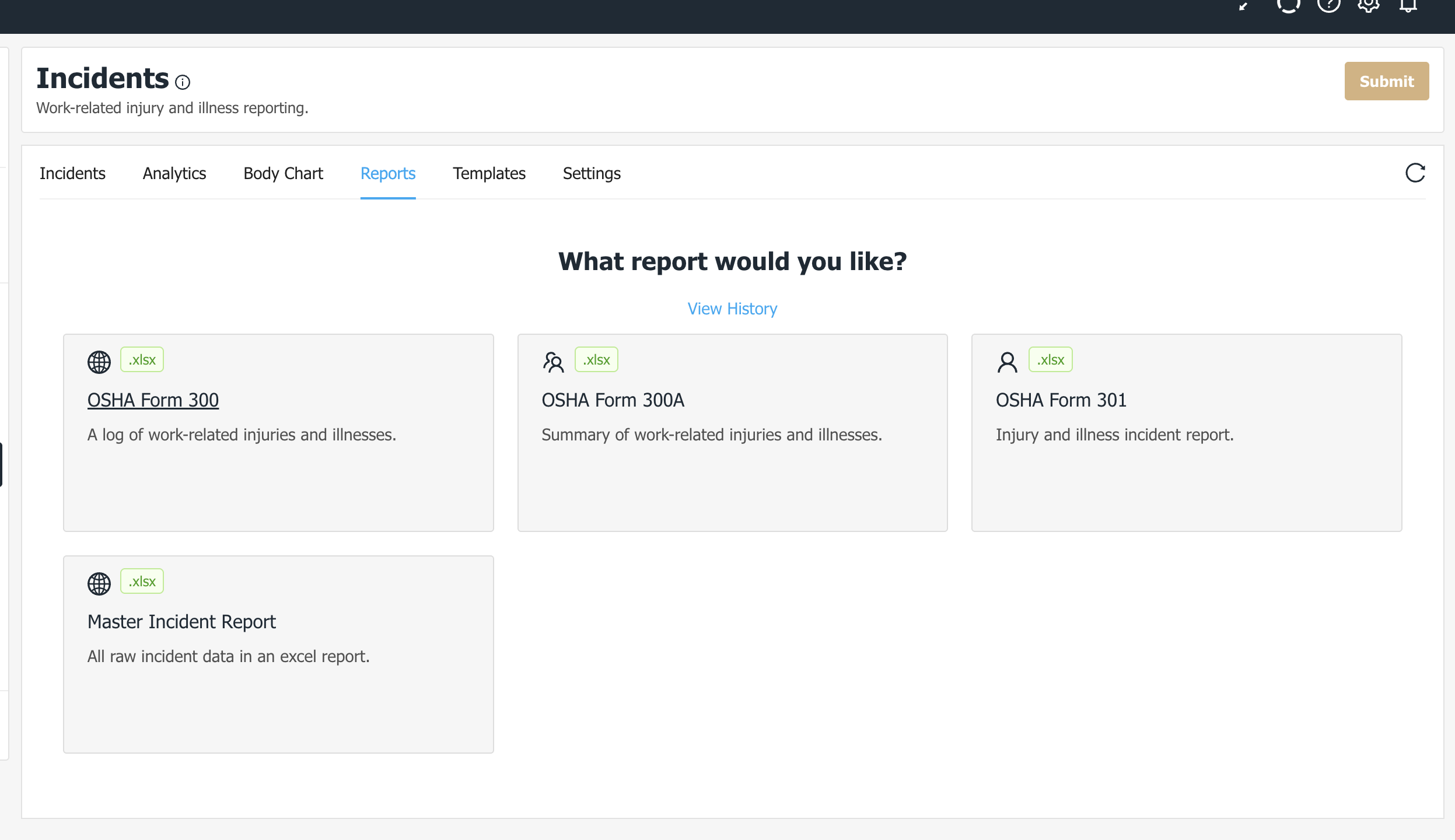
There are 3 primary ways to export data from ZERO. All options are applicable across all functional areas in ZERO.
Please note: exports are limited by what your user role is allowed to see. Only Admins have the ability to access all data across all teams/locations.
Here are the export options available:
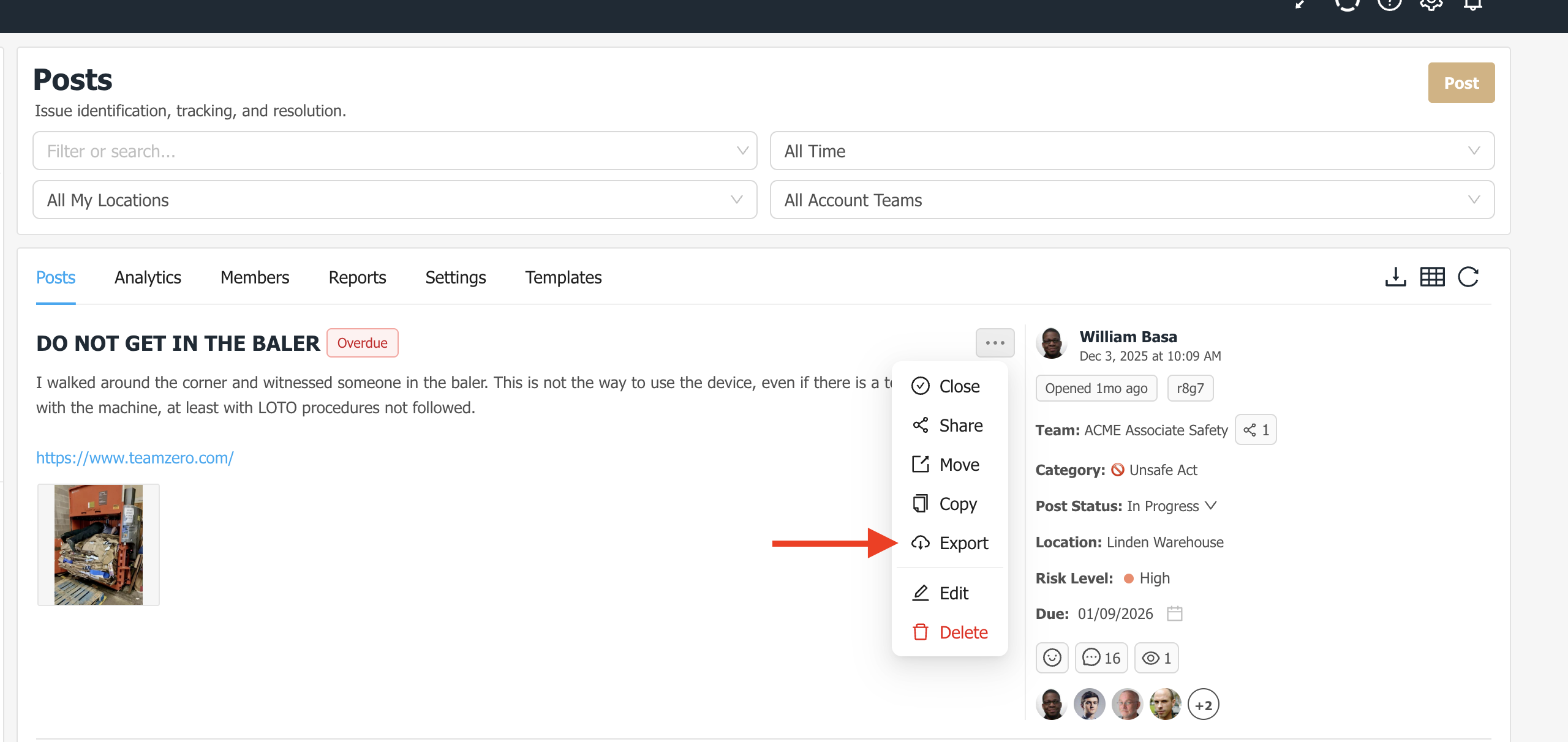
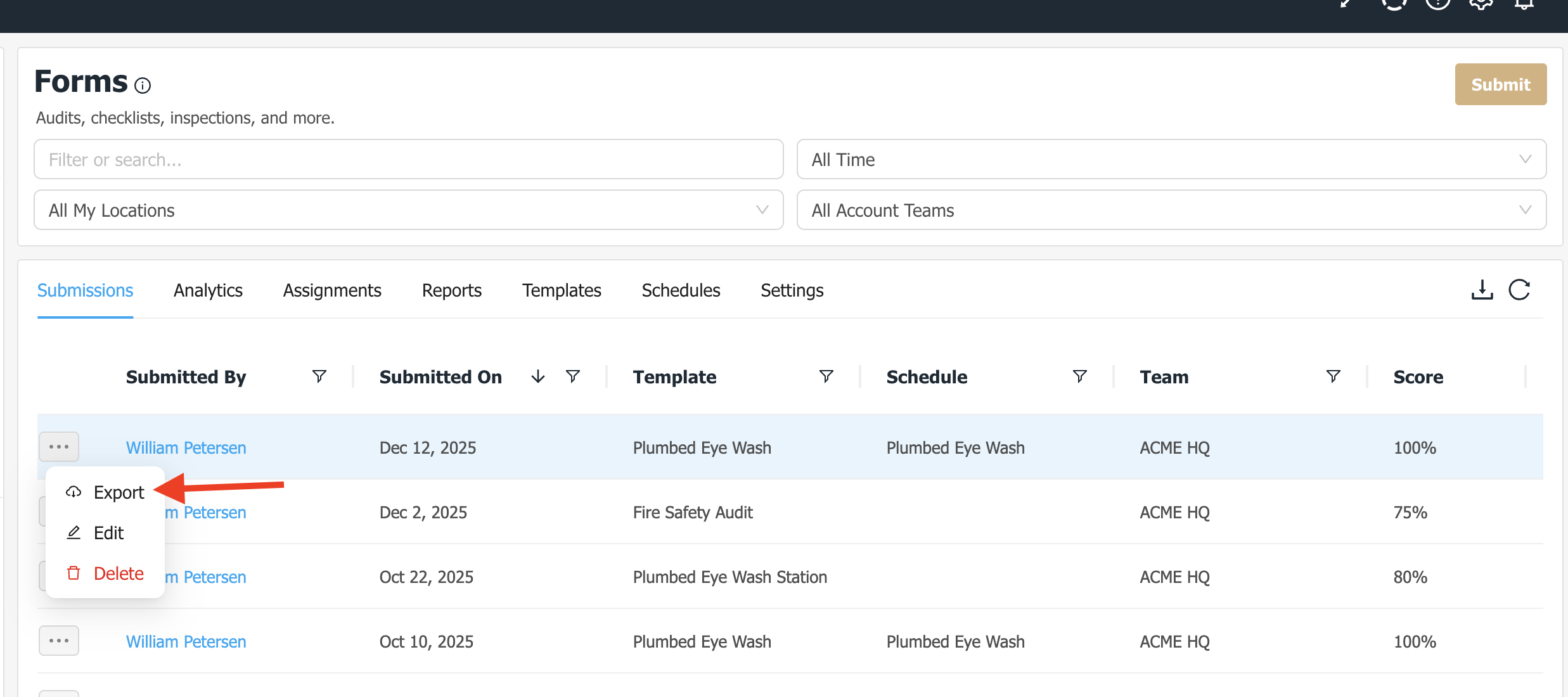
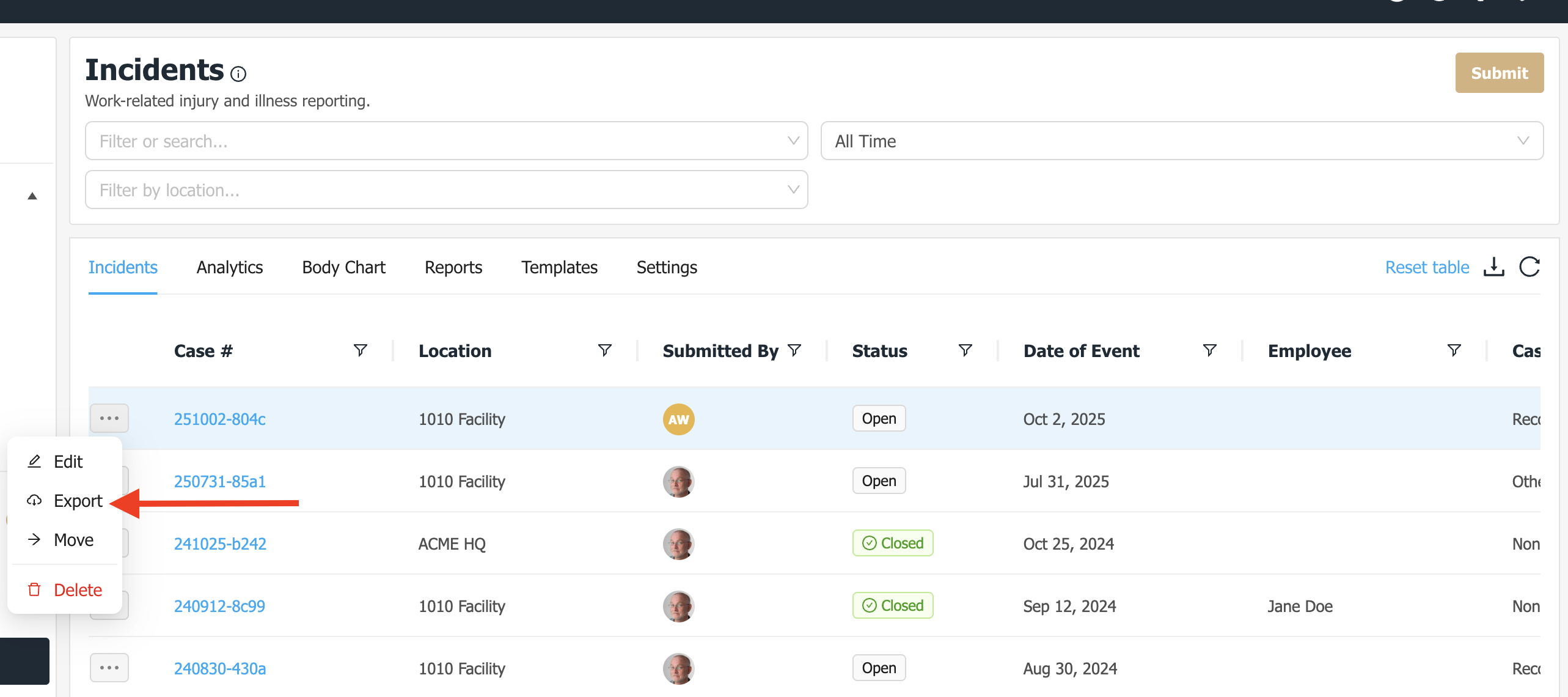
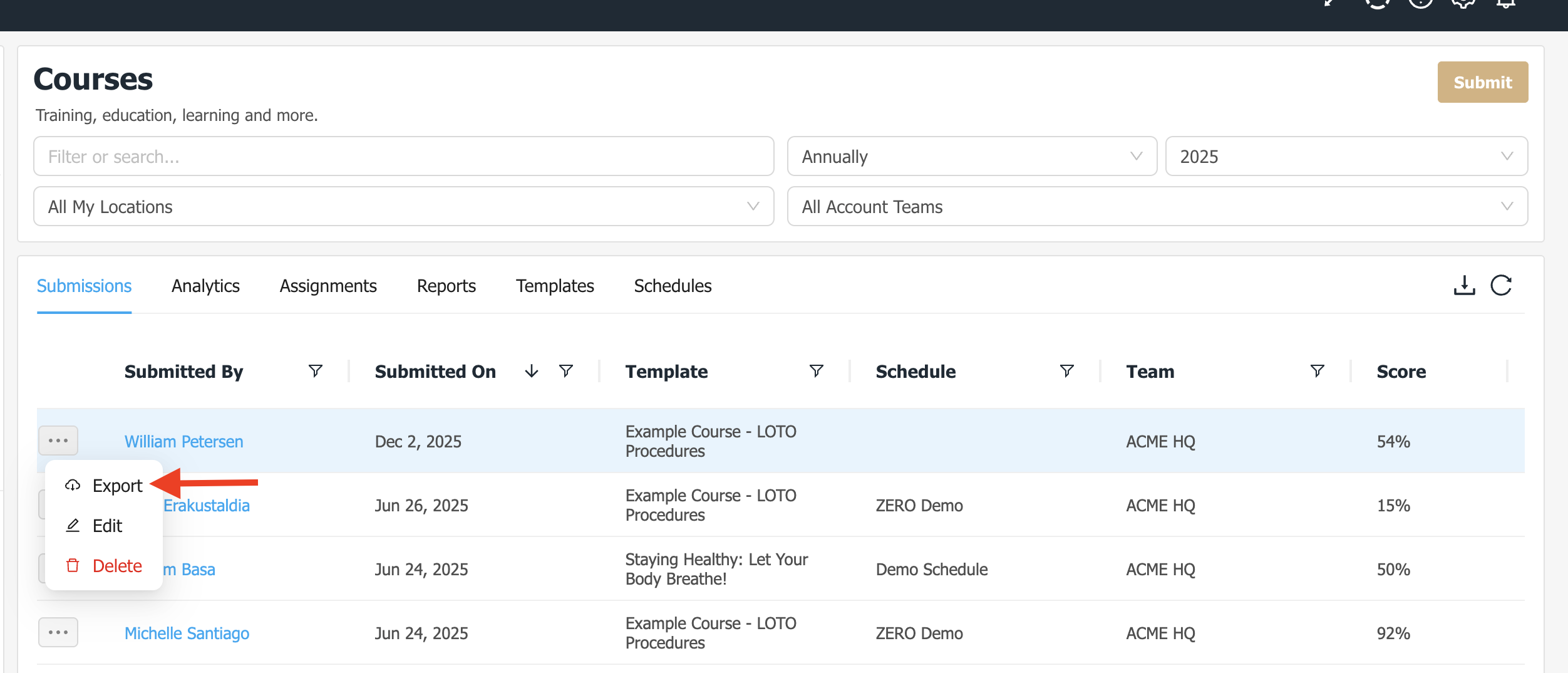
1. Individual exports: individual records in ZERO can be exported to PDF. For example, a post, a form (or course) submission, and an incident can be all be exported individually through the interface by simply finding the record you want to export, clicking on the ellipsis icon next to the record and selecting "Export".
Below are instructions on how to export records from each major functional area. If you're looking for bulk export options, please scroll down to option 2 and 3.
Post Export: Go to posts > find the post you want to export (by searching or filtering at the top) > click on the ellipsis icon > click on "Export".
Form Submission Export: Go to Forms > find the submission you want to export (by searching or filtering at the top) > click on the ellipsis icon > click on "Export".
Incident Export: Go to Incidents > find the incident you want to export (by searching or filtering at the top) > click on the ellipsis icon > click on "Export".
Course Submission Export: Go to Courses > find the course you want to export (by searching or filtering at the top) > click on the ellipsis icon > click on "Export".
---------
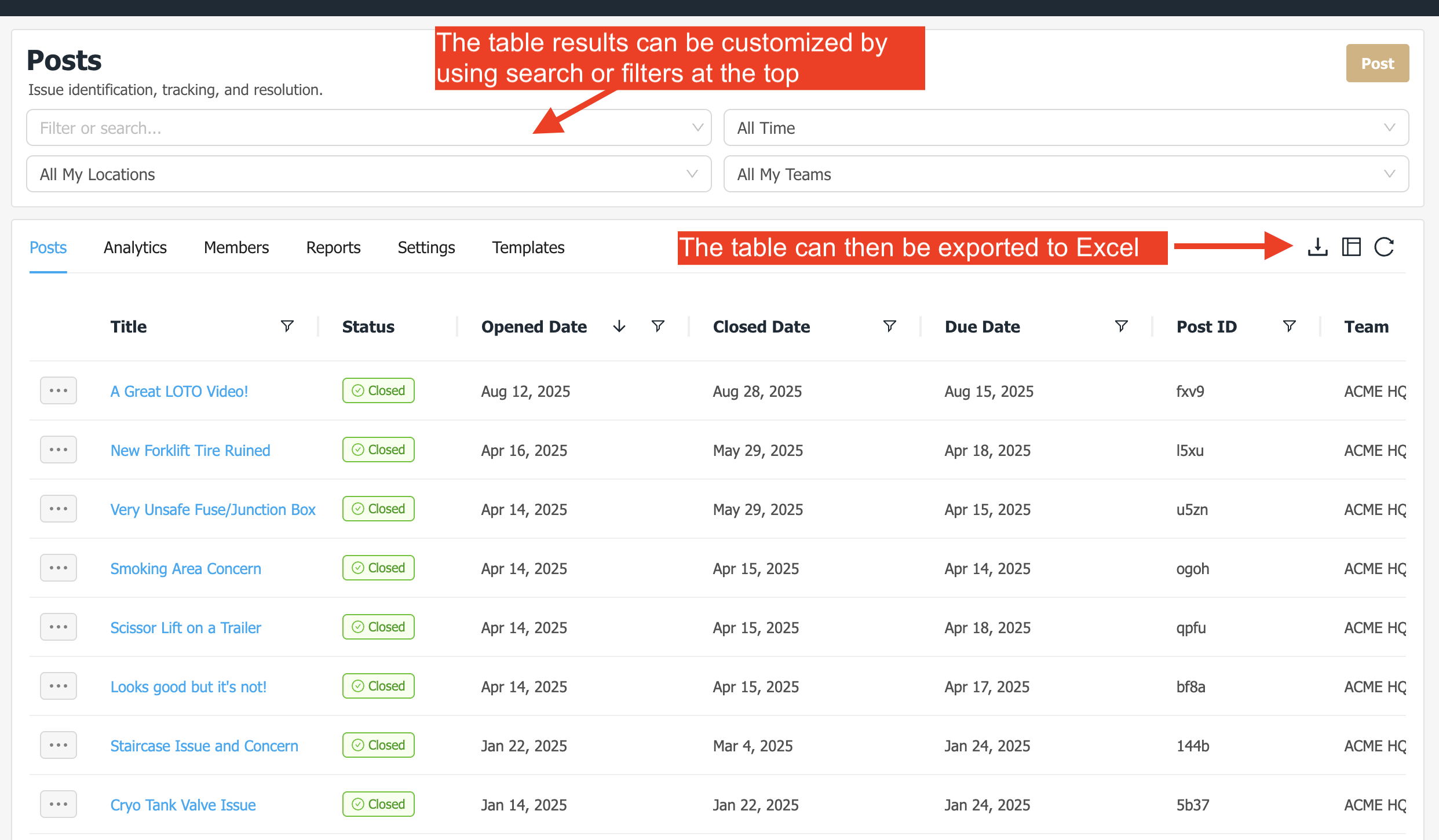
2. Bulk exports: each functional area in ZERO has a main table view. These tables allow you to customize your view and export any data that you want. If you want all records, you will need to change your filters at the top to use the "All Account Teams" options.
Below are examples of how to use the table view exports for Posts. This same functionality applies across all functional areas in ZERO.
Post Table View:
--------
3. Reports:
Lastly, there are "Reports" that can be generated from within each functional area. Reports can only be generated by Admins or Team Leads.
Below are instructions on how to generate reports for each functional area in ZERO.
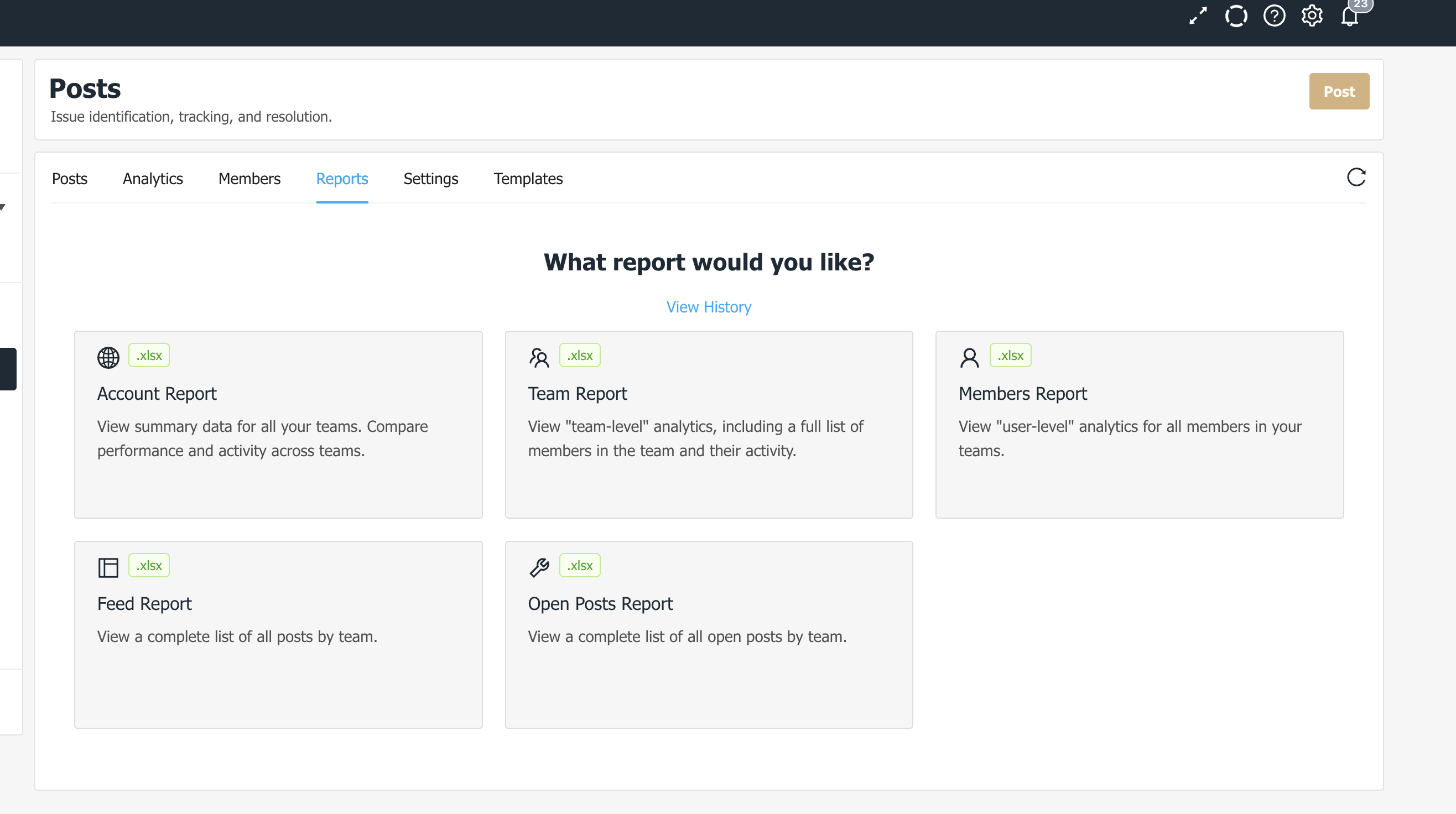
Post Reports: Go to Posts > click on the "reports" tab. There are 5 options for exporting post and member data.
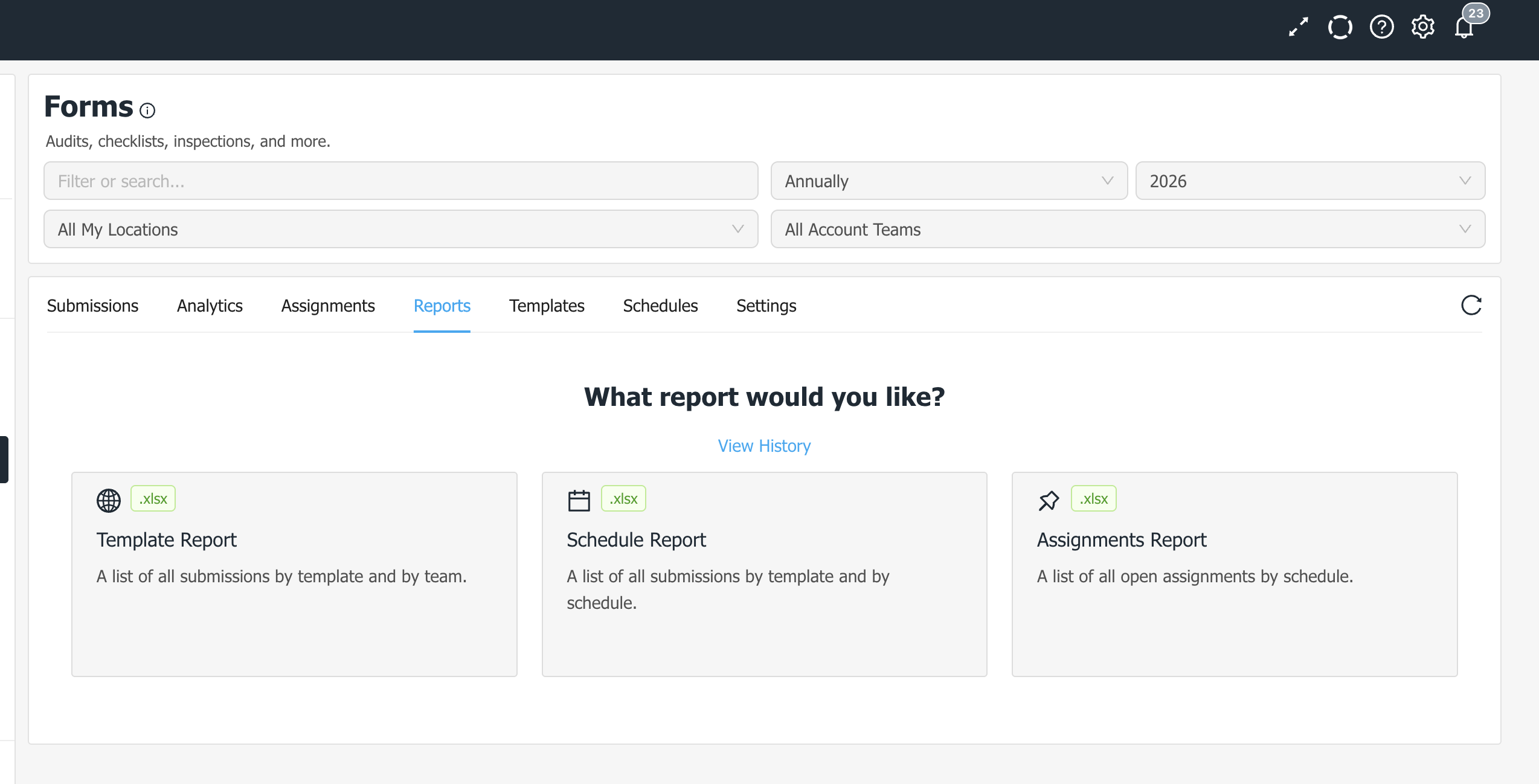
Form Reports: Go to Forms > click on the "reports" tab. There are 3 options for exporting submissions, schedules, and assignments data.
Incident Reports: Go to Incidents > click on the "reports" tab. There are 4 options for exporting incident data, including OSHA reports.